How to Put a QR Code on a Business Card That Actually Scans
A QR code on a visiting card saves people typing your details. What to put in it, how big to print it, where it goes, and what stops it from scanning.
QRStitch Team7 min readUpdated
On this page
- vCard QR code or website link?
- What to put in a visiting card QR code
- Business card QR code size: 2 cm is the floor
- Check the card itself with your printer
- Where to put the QR code on a business card
- Foil, gloss and other finishes that stop a scan
- Keep your details in print, because some people won't scan
- When your details change
- Frequently asked questions
- Can a QR code replace a business card?
- Will a vCard QR code work on iPhone and Android?
- What to do with the proof before you approve 500 cards
- Sources
Your print order for new business cards is ready to go, and the back of the card is still blank.
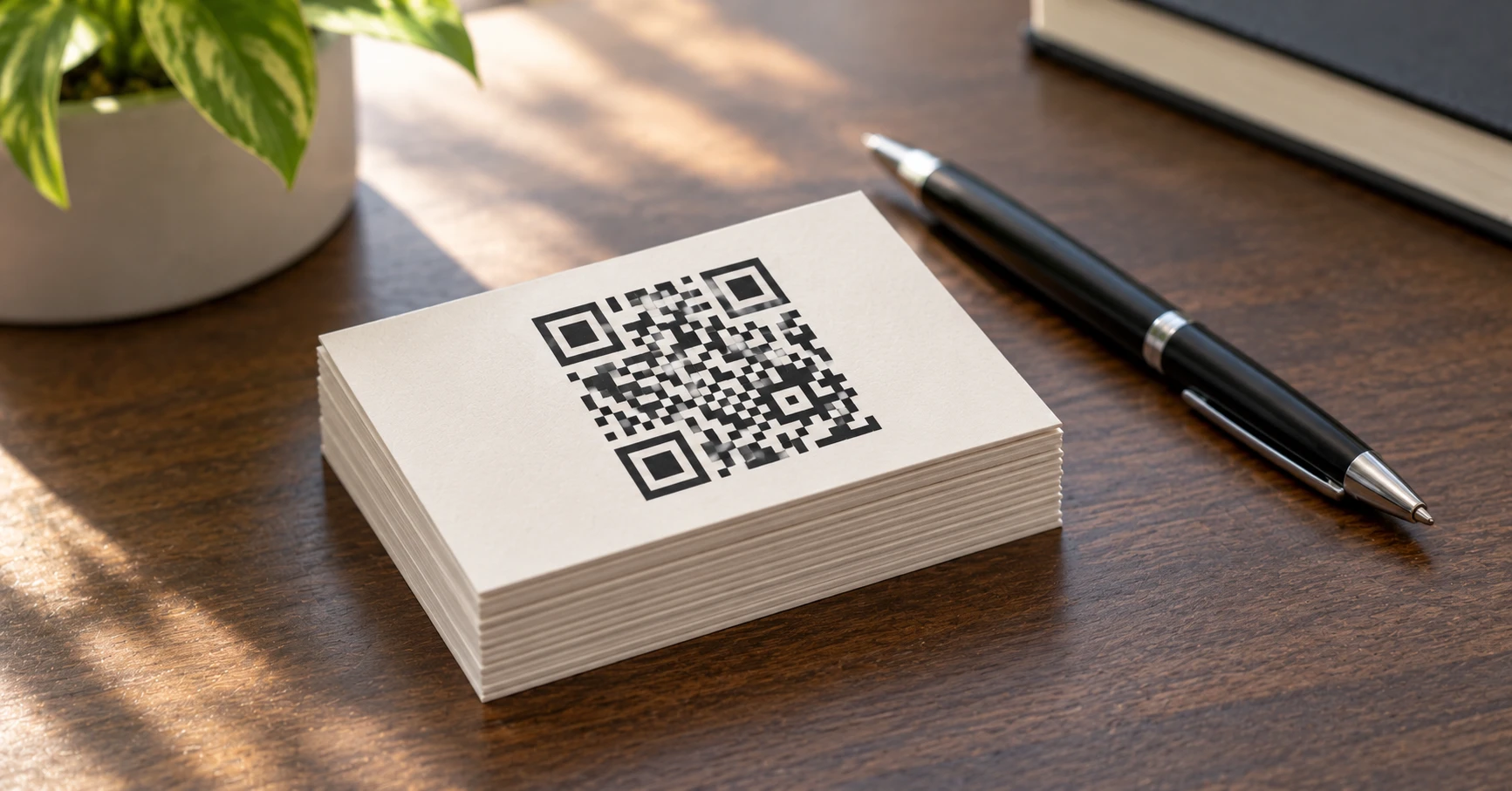
A QR code is a good use of that space. For a QR code on a business card (or a visiting card, if that's what your printer calls it), make a vCard code with your name, mobile and email, print it about 2.5 cm wide on the back, and test the printed proof on two phones. Whoever scans it can save you as a contact without typing a thing.
The details decide whether it works. Stuff a vCard with every field you have and the pattern can turn too dense for a small card, and a beautiful foil finish can stop a code from scanning at all.
vCard QR code or website link?
Decide what you want someone to do right after they scan. A vCard QR code offers to save you as a contact, while a website link code opens a page in the browser.
A vCard is the standard format for contact details (RFC 6350). Our vCard QR code generator stores your details in the code itself as vCard 3.0, so they're readable offline and nothing passes through a server. That suits people in sales or consulting, and anyone out networking. The price is density, which is higher than a short link's and grows with each field you add.
A website link suits you if the point is to show something. A photographer wants a portfolio, and a doctor might want an appointments page, and shops and booking pages work the same way. The person scanning needs internet, but the page can change while the address stays put.
Use the URL QR code generator and pick the shortest address that works, since a short address keeps the code's density low. You can also link your LinkedIn profile, or several profiles on one social links page, though a page you control is safer in the long run.
If you're unsure, go with the vCard. Saving a contact is what a business card is for.
What to put in a visiting card QR code
Every field adds data, and every bit of data adds modules, the small squares that make up the code. On a card that's only about 5 cm tall, there's not much room to grow.
We measured two typical vCards using the encoder our generator uses:
| vCard contents | Characters | Modules across | Module size at 2 cm |
|---|---|---|---|
| Name, mobile, email | 110 | 45 | 0.38 mm |
| Name, company, title, two phones, email, website, address | 272 | 65 | 0.27 mm |
The module sizes allow for the white border. The longer vCard's squares are nearly a third smaller, and phones start to struggle with small squares, particularly in poor light.
Start with your name, your mobile in international format (+91 98765 43210) and your email. Company, job title and website are worth adding after that. A second phone number only earns its place if people really use it.
Leave the postal address out of the vCard. A full address is usually the longest thing in the code and the thing fewest people need, so it makes the pattern much denser for very little return. If it matters, it can stay in print on the card, where it costs the code nothing.
The long row in that table carries several other extras as well, so it doesn't isolate the address. It's still the first field we'd cut.
Business card QR code size: 2 cm is the floor
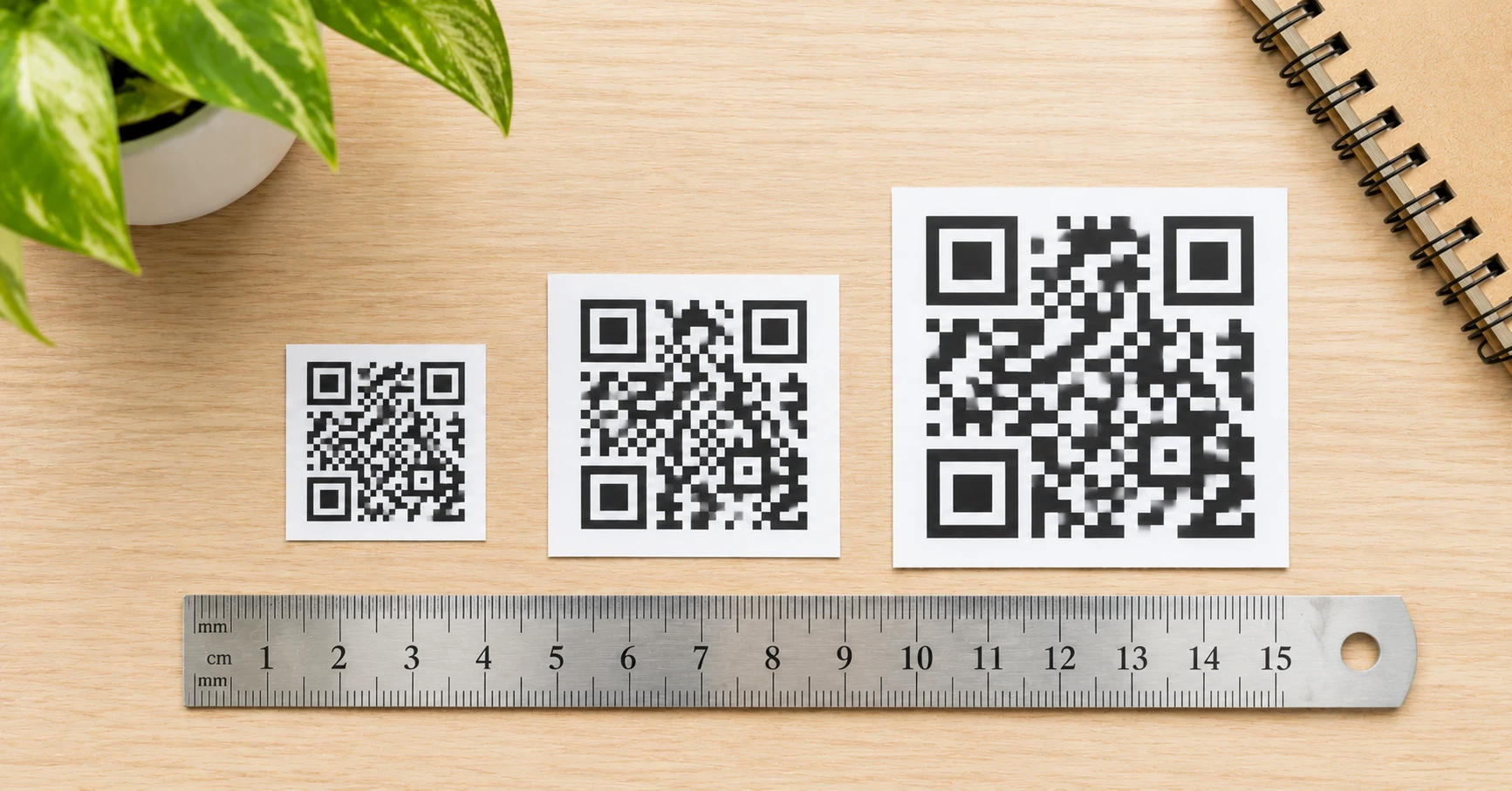
The QR code size for a business card starts at 2 × 2 cm (0.8 × 0.8 in). That's the minimum VistaPrint gives for business cards, and Scanova's size guide gives the same figure. Some printers' pages ask for more, so if yours states a minimum, follow it.
Above the floor, the right size depends on what's inside the code. A short vCard is happiest at 2.2 cm or more, and about 2.5 cm is the size to use for a typical vCard. The long version in the table is a gamble at 2 cm and wants 3 cm or more.
A logo pushes a vCard towards 3 cm, and a long one with a logo needs close to 3.8 cm. The QR code print size guide shows how to work it out for any content.
The white border around the code, four modules wide, is part of that measurement. Don't let a designer crop it to save space.
Check the card itself with your printer
There's no single card size, and even in one country printers differ.
| Region | Finished size | Source |
|---|---|---|
| United States | 3.5 × 2 in | VistaPrint |
| India | 8.9 × 5.1 cm | VistaPrint India |
| India | 90 × 54 mm | Printster |
Get the exact size and safe area from your printer before you lay out the card. VistaPrint's safe area on a US card is 3.36 × 1.86 in. Your printer may trim anything outside it, and losing part of the white border around a code can stop it from scanning.
Where to put the QR code on a business card
The back is usually best. It leaves the front clean for your name and logo and gives the code room, and VistaPrint suggests the back too, away from the edges.
If you only have one side, set the code in a corner of the layout, inside the safe area, on a plain background. A short line near it tells people what they'll get: "Scan to save my number" does the job. A classic frame with a short label does this for you, and you can browse the options in QR code templates.
Foil, gloss and other finishes that stop a scan
On a card, the finish needs more care than the artwork does. Metallic and raised foil won't scan reliably, because the reflection disrupts the contrast the camera needs. Foil your logo if you like, and print the code in flat ink.
Keep spot gloss off the code as well. Matte is the safer finish.
A white code on black card looks striking, but some scanner apps can't read inverted codes. On dark or textured card, put a light panel behind a dark code instead.
Brand colours are fine as long as the code stays clearly darker than its background. Our generator measures the contrast and warns you if it's too low, so you can choose colours that still scan.
If you want a logo in the middle, keep it modest, around 20% of the code's width. A logo raises the error correction level, which makes the code denser, so it's a poor match for a long vCard. Our logo guide covers the trade-off.
Keep your details in print, because some people won't scan
A QR code on a visiting card helps if you hand out cards to people who'll want to contact you later, because it removes the typing and the typos. But some people won't scan it, so your name and number still have to be printed on the card, with the code as a shortcut beside them.
When your details change
A vCard code holds your details directly, so a new number means a new code and a reprint. That's the trade-off for a code that works offline and has no service behind it.
If you change jobs often, or you'd like to update your details without reprinting, link the code to a web page you control instead, and keep that page up to date. A dynamic QR code does the same job for a contact card: it opens a contact page with a "Save contact" button, and you can edit the details after printing.
Frequently asked questions
Can a QR code replace a business card?
For saving a contact it can, on a phone screen or a badge at an event. A printed card still works when your phone is out of charge, and it's something people can keep.
Will a vCard QR code work on iPhone and Android?
Phones on both offer to add the contact, though the steps differ. Apple's guide covers scanning on iPhone, and Android's guide lists the Camera, Quick Settings and Lens options. Test the printed code on both before you order.
What to do with the proof before you approve 500 cards
Build the QR code for your business card in the vCard QR code generator, match your brand colours and download an SVG for your printer. It's free, with no sign-up and no watermark, and the bulk generator creates codes from a spreadsheet if you're making cards for a whole team.
SVG or PDF keeps the code sharp. If your printer needs an image file, supply it at 300 dpi or higher at final size. Then get a printed proof, or print one at exact size on similar paper, and put it through these checks:
- Scan it with an iPhone and an Android phone. Android phones vary, so try both the Camera app and Google Lens.
- Save the contact and open it, then check that every field landed in the right place. Scanners don't always carry over every field: QRCodeChimp's support team reports that Google Lens sometimes drops some.
- Call the number and open the website from the saved contact.
A wrong digit on 500 cards is expensive, so don't approve the full run until 2 phones have passed all 3 checks on the proof.
Sources
- RFC 6350, the vCard format specification
- VistaPrint business card design rules
- VistaPrint India standard business cards
- Printster guide to printing visiting cards online
- Scanova QR code size guide
- VistaPrint help on placing a QR code on a card
- 4over4 on QR codes with metallic or raised foil
- VistaPrint New Zealand help on spot gloss
- QRCodeChimp support on fields missing from saved contacts
- Apple guide to scanning a QR code on iPhone
- Android guide to scanning QR codes
#business cards#vcard#printing#visiting cards